sparehand-auto
NGO Auto Emailer — Setup and Use
Open the tool: https://go.tejitpabari.com/tejit-np-auto-emailer
Nothing to download. It is a web page that runs inside your own Google account.
What it does
Sends one personal email to many people at once. You write the email once in Gmail, mark the parts that change (like {{Full Name}}), and the tool fills in each person’s details from your Google Sheet. Emails go out from your own Gmail address.
What you need
| You need | What it means |
|---|---|
| A Google account | Gmail, personal or Google Workspace. |
| A Google Sheet | Your list. One row per person, with a column of email addresses. |
| A Gmail draft | An email saved in Gmail but not sent. It is your template. |
Google daily limits: about 100 emails (personal Gmail), about 1,500 (Workspace). Send bigger lists in batches over several days.
Step 1 — Set up your sheet
- Put column names in row 1 (for example
Full Name,Email). One person per row from row 2. - It must be a real Google Sheet, not
.xlsxor.csv. For an Excel file: File → Save as Google Sheets. - Cells are sent as plain text. Put links and formatting in the Gmail draft.
| Full Name | Personal Note | |
|---|---|---|
| Donor A | donor.a@example.com | Nice meeting you at the fundraiser. |
| Donor B | donor.b@example.com | |
| Donor C | donor.c@example.com | Great to see you at the gala. |
Example file: sample-sheet.csv (File → Import → Upload).
Step 2 — Write your Gmail draft
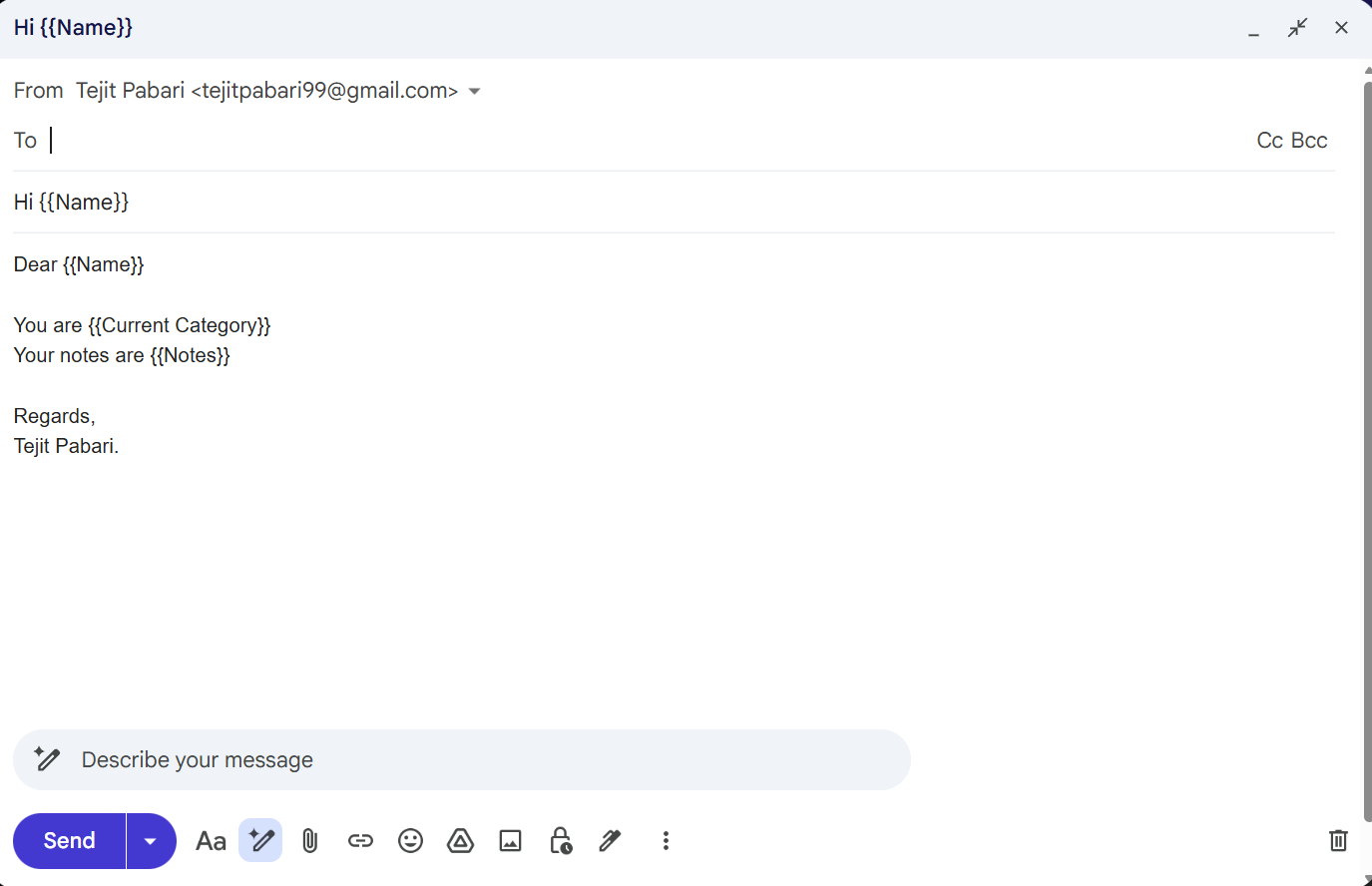
- In Gmail, click Compose. Leave To empty.
- Use a subject no other draft has. The tool finds your draft by subject.
- Where a person’s details go, type the column name in double curly brackets, for example:
Subject: Thank you, {{Full Name}} Dear {{Full Name}}, {{Personal Note}} Thank you for your support this year.- Use the column name exactly as in row 1, with no spaces inside the brackets:
{{Full Name}}, not{{ Full Name }}. - A placeholder in the subject is only filled in if the same
{{...}}is also in the body. - Attachments and pictures are sent to everyone.
- Use the column name exactly as in row 1, with no spaces inside the brackets:
Step 3 — Open the tool and allow access (first time only)
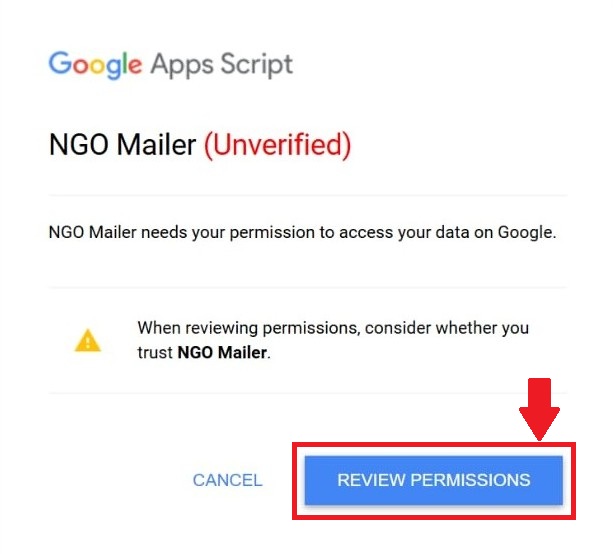
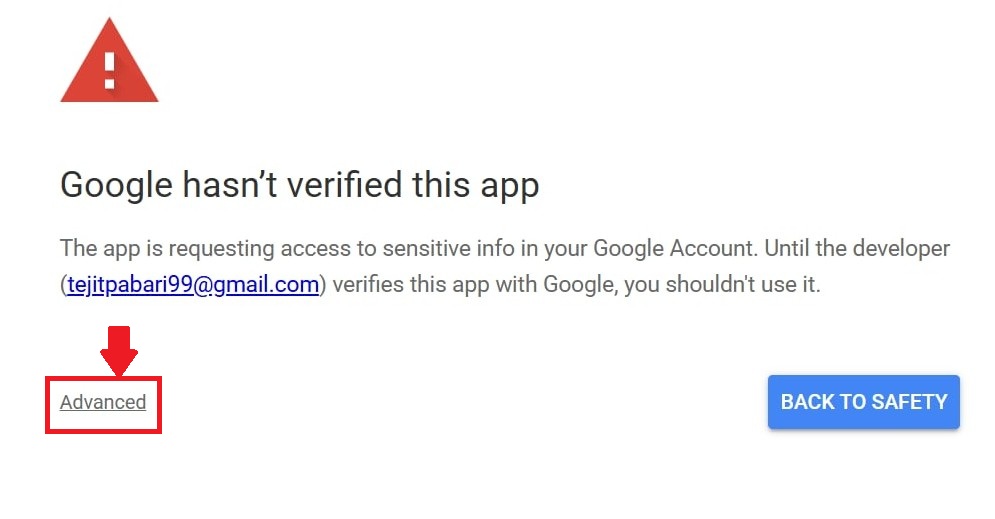
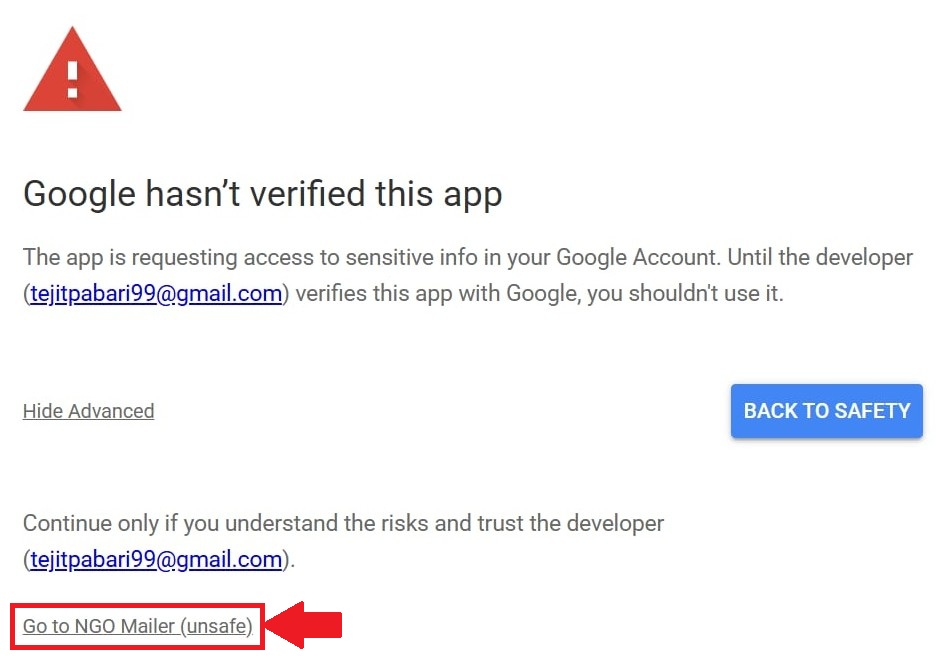
Open the tool link. Google shows an “unverified” warning because the tool has not paid for Google’s public review. It is safe if you trust the person who shared it. Safety check: continue only if Google shows the developer as tejitpabari99@gmail.com. If not, click Back to safety.
-
Click Review permissions.
-
Click Advanced (small link, bottom left).
-
Click Go to NGO Mailer (unsafe).
-
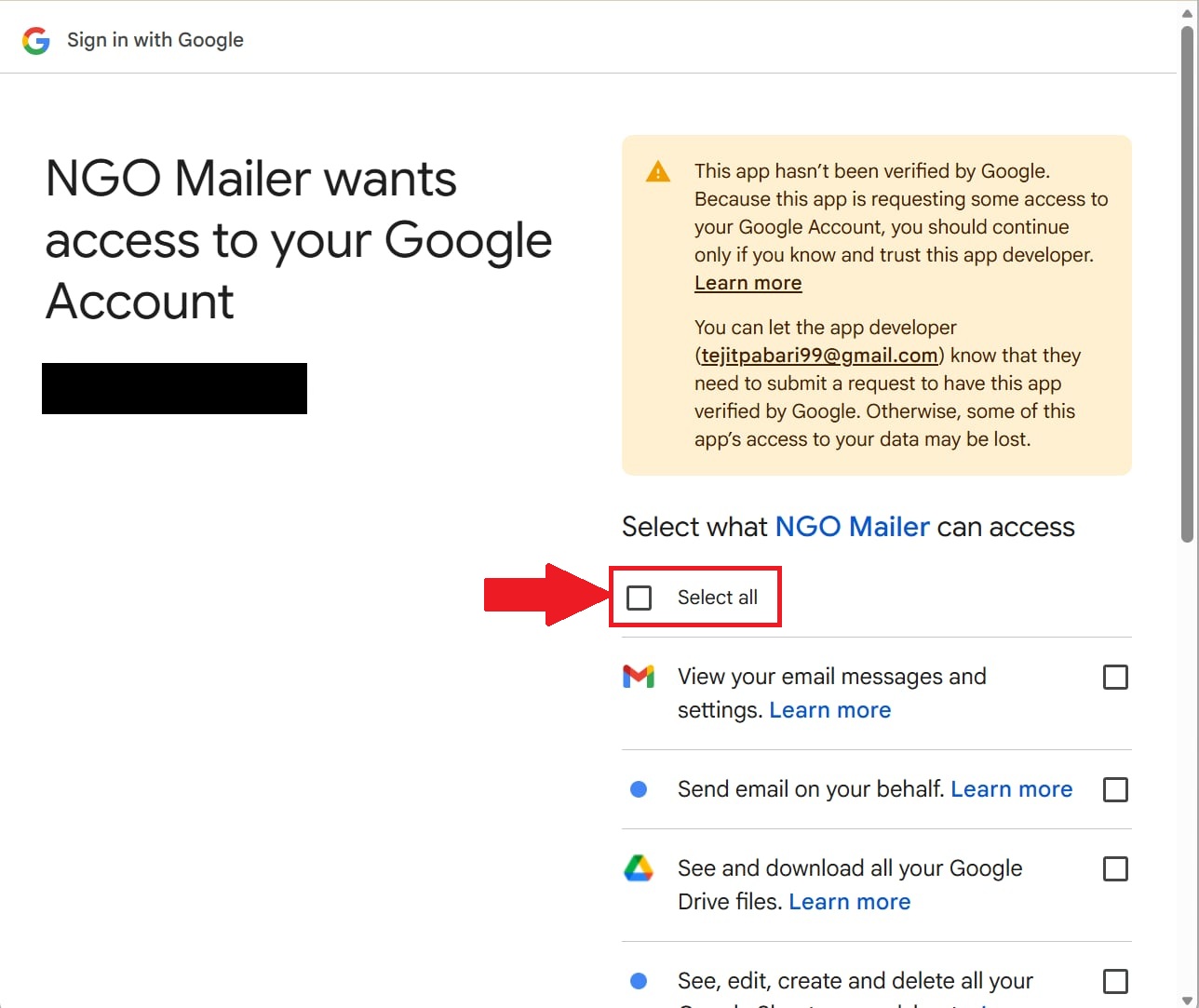
Tick Select all. The tool will not work if any box is left unticked.
-
Scroll to the bottom of the screen and click Continue.
| Google asks to… | Why |
|---|---|
| See your Google Drive files (read only) | To list your spreadsheets and read the one you pick. |
| View your email messages and settings (read only) | To find your draft. Nothing else is read. |
| Send email on your behalf | To send the emails from your address. |
| See, edit, create and delete your spreadsheets | To read your list and write “Email Sent” results back. |
| See your primary Google Account email address | To send the test email to you. |
| Connect to an external service | Only used to send anonymous usage counts to ping.tejitpabari.com. Never your emails, drafts or sheet content. |
Step 4 — Fill in the dashboard
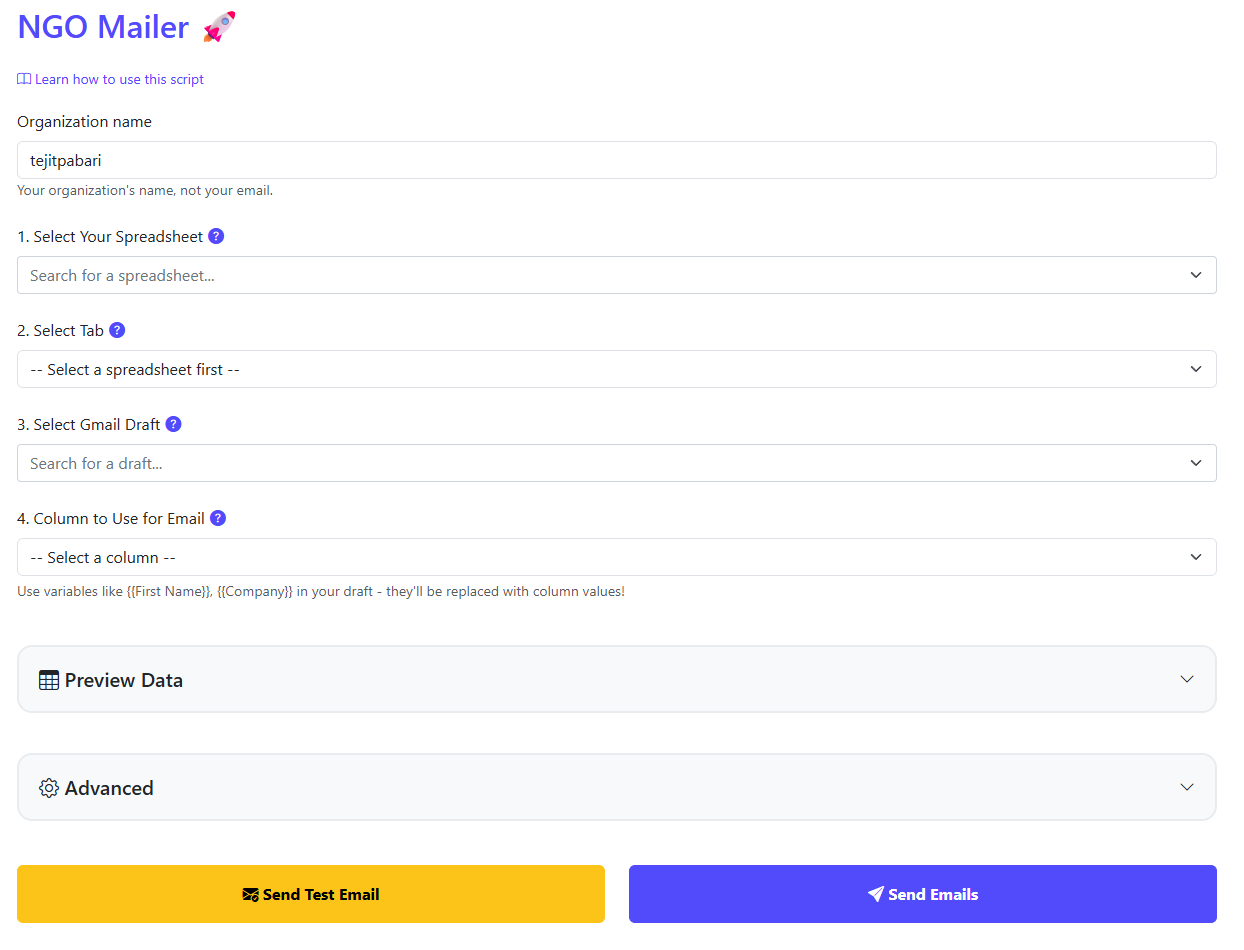
- Organization name — your organization’s name, not your email. Required before any test or real send. It is remembered for next time.
- Pick your spreadsheet, the tab with your list, your Gmail draft (Step 2), and the column with email addresses.
Step 5 — Send a test, then send
- Click Send Test Email. One email goes only to you, using row 2’s details (subject starts [TEST]). Check every
{{...}}was replaced; if not, see Troubleshooting. - Click Send Emails, then OK.
- Keep the tab open until it says Complete! Closing it or letting the computer sleep stops sending.
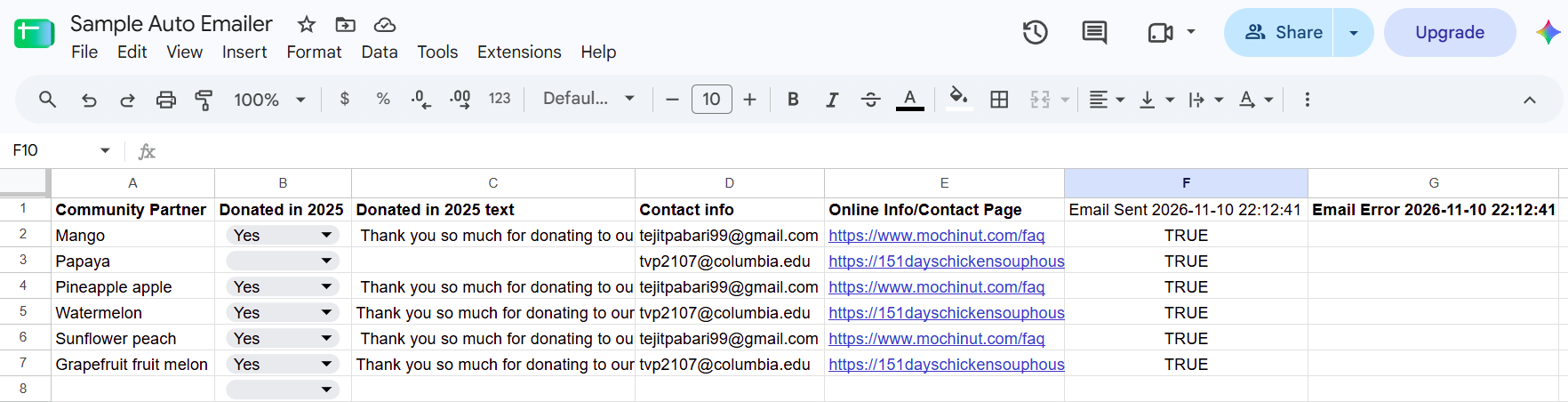
With Store results in spreadsheet on (default), your tab gets new Email Sent and Email Error columns.
Advanced options
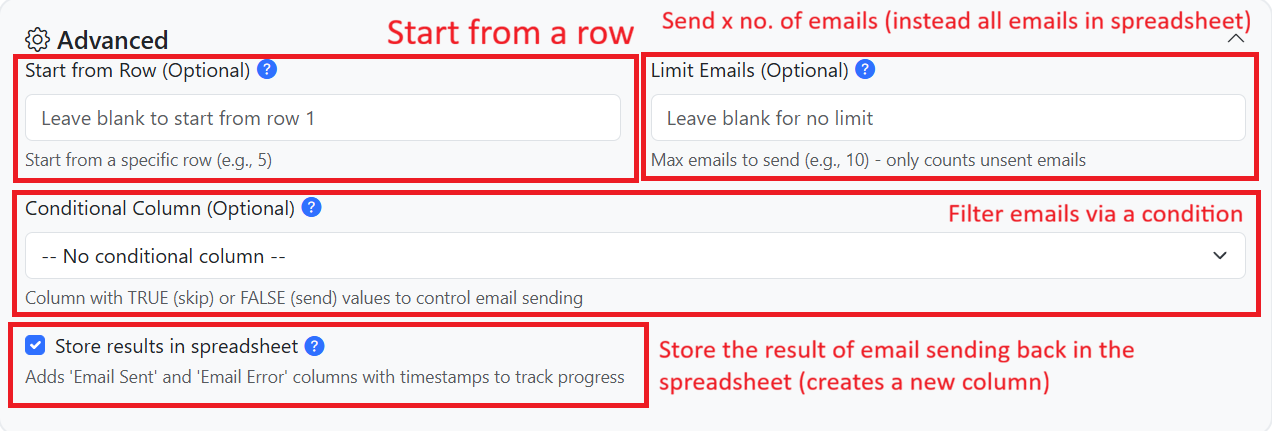
Click Advanced (Optional) on the dashboard. Everything in it is optional.
| Option | What it does |
|---|---|
| Store results in spreadsheet | Writes Email Sent and Email Error results into your tab (new columns with date and time by default). Turn off to send without touching the sheet. |
| Conditional Column | A column saying who already got the email. TRUE = skip. FALSE or empty = send. Other values stop the run. |
| Email Sent column / Email Error column | Only available when Store results in spreadsheet is on. – New Column – (default) adds a new column. Or pick one of your existing columns to write the result there instead (rows already marked sent by the Conditional Column are left alone; blank-email rows get FALSE / “No email address”). Pick two different columns, and not the email column. |
| Start from Row | Starts at this person (1 = first person, row 2). Blank = from the top. |
| Limit Emails | Stops after this many tries. Blank = no limit. |
| Stop After Errors | Stops after this many failed rows in a row. Blank = 5. Whole numbers from 1. |
The tool pauses a random 0.5 to 1 second between emails. If Google says you hit the daily limit, it slows to 1 to 2 seconds and retries that person once. If the limit is hit again, it stops and shows “Too many emails sent in a day via automation. Try again in 24 hours”.
If 5 emails in a row fail (or the number you set in Stop After Errors), the tool stops. Rows with a blank email cell are skipped: they are not counted as sent or failed, and do not affect this count. To continue after stopping:
- Set Start from Row to the next person after the last one sent, or
- Keep your own column (for example
Already Sent), copy TRUE values into it after each run, and use it as the Conditional Column.
Do not use the newest Email Sent column alone as the Conditional Column. People skipped in that run are not in it, so they would be emailed again. After changing columns, refresh the page and re-pick your spreadsheet.
Troubleshooting
| Problem | What to do |
|---|---|
| Sheet not in the list | Only 50 sheets are shown. Copy it (File → Make a copy) or remove old sheets, then refresh. Make sure it is not .xlsx. |
| “Draft … not found” | Check it is still in Gmail Drafts and no other draft shares its subject. Refresh. |
{{...}} came out blank |
Name does not match row 1 (check spelling, no inner spaces), the cell is empty, or it is only in the subject. |
| “Too many emails sent in a day via automation” | Daily Google limit reached. Wait 24 hours, then continue (set Start from Row to where it stopped). |
| “Authorization required” | Open the tool link and repeat Step 3. Tick Select all. |
| Stopped after 5 errors | Read the last error and the Email Error column, fix it, then continue. |
Privacy
- The tool runs as you, from your own Google account.
- It sends anonymous usage counts to the developer, including your organization name. Never your email address, names, recipients, or draft or sheet content.
- Read the Privacy Policy and Terms and Conditions.
- Remove access any time at https://myaccount.google.com/permissions (look for NGO Mailer).